
Shared Values in Reanimated 2
 Krzysztof Magiera•Jul 2, 2020•9 min read
We recently published an alpha release of Reanimated 2 (read the announcement post here). This next major version of the popular Reanimated library, compared to the version 1, takes a completely new approach to the way we define animations and interactions. There are a number of new concepts that we introduced in Reanimated 2 and we tried to highlight those in the original post. As we continue to expand our new documentation, we also want to share more content on those new concepts in the form of a blog post. In this article we start with one of the most fundamental elements introduced in Reanimated 2.0 API — Shared Values.
Shared Values are not all that new concept. While you can draw many similarities to React’s state or to Animated Values (for those familiar with Reanimated 1, or with the React Native’s Animated API), they expand a bit on these concepts. The most pronounced similarity is the fact that Shared Values are designed to reference data (that, for example, can be passed in between components) and to provide reactiveness (as a means of running some updates when the data changes). Finally, they serve as a means to control animations — they are a part of an animation library API after all. In this post, we discuss each of these key roles in detail.
Before you start, we recommend that you read the announcement post or the introductory sections of our documentation to learn about Reanimated Worklets, and to get a sense of how the threading model work in Reanimated 2.
Carrying data
One of the primary goals of Shared Values (hence their name) is to provide a notion of shared memory in Reanimated 2.0. As you might’ve learned in the announcement post, Reanimated 2.0 runs animation code in a separate thread using a separate JS VM context. Shared Values makes it possible to maintain a reference to a mutable data that can be read and modified securely across those threads.
Shared Value objects serve as references to pieces of shared data that can be accessed and modified using their .value property. It is important to remember that whether you want to access or update shared data, you should use .value property (one of the most common source of mistakes in Reanimated 2 code, is to expect the Shared Value reference to return the data instead of accessing .value property of it).
In order to provide secure and fast ways of accessing shared data across two threads, we had to make some trade-offs when designing Shared Values. As, during animations, updates most of the time happen on the UI thread, Shared Values are optimized to be updated and read from the UI thread. Hence, read and writes done from the UI thread are all synchronous, which means that when running from a worklet on the UI thread, you can update the value and expect it to be updated immediately after that call. The consequence of this choice is that updates made on the React Native JS thread are all asynchronous. Instead of those updates being immediate in such case, Reanimated core schedules the update to be performed on the UI thread, this way preventing any concurrency issues. When accessing and updating Shared Values from the React Native JS thread, it is best to think about it as if the value worked the same way as React’s state. We can make updates to the state, but the updates are not immediate, and in order to read the data we need to wait till the next re-render. In order to create a Shared Value reference, you should use useSharedValue hook:

The Shared Value constructor hook takes a single argument which is the initial payload of the Shared Value. This can be any primitive or nested data like object, array, number, string or boolean.
In order to update Shared Value from the React Native thread or from a worklet running on the UI thread, you should set a new value onto the .value property.
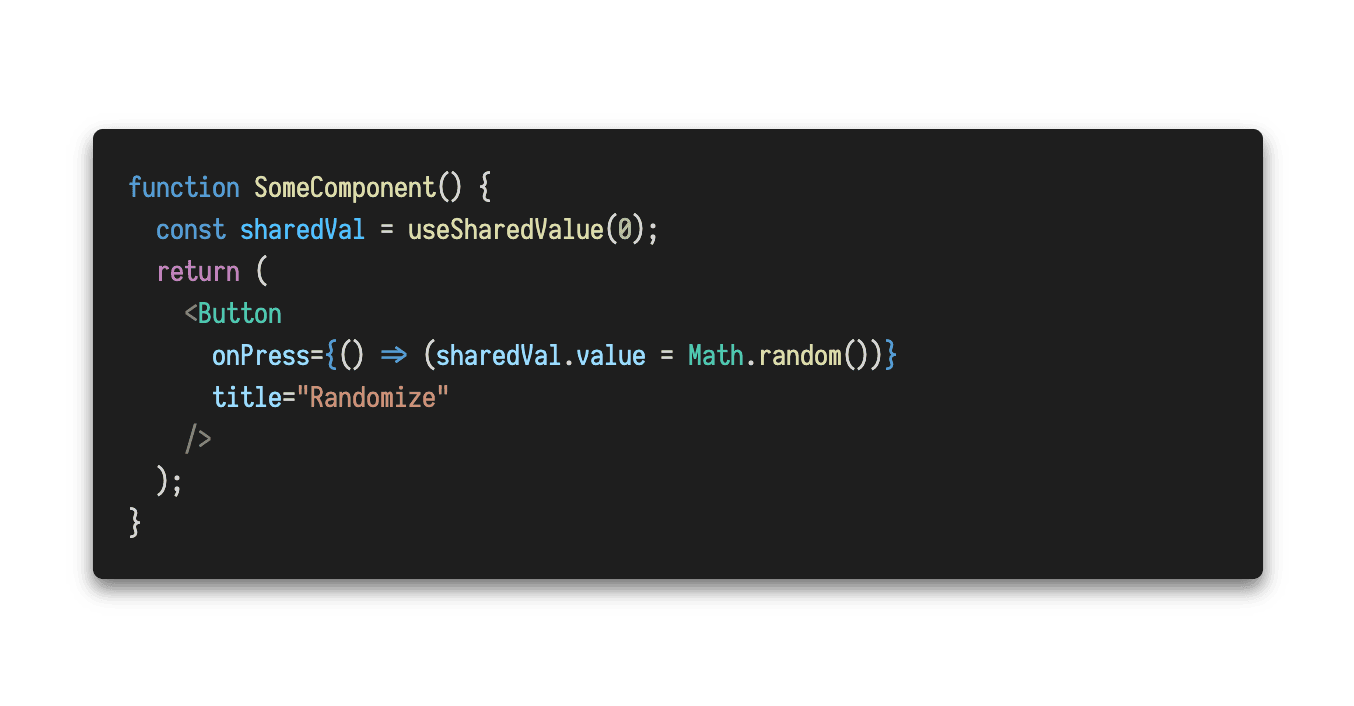
In the above example we update value asynchronously from the React Native JS thread. Updates can be done synchronously when making them from within a worklet, like so:
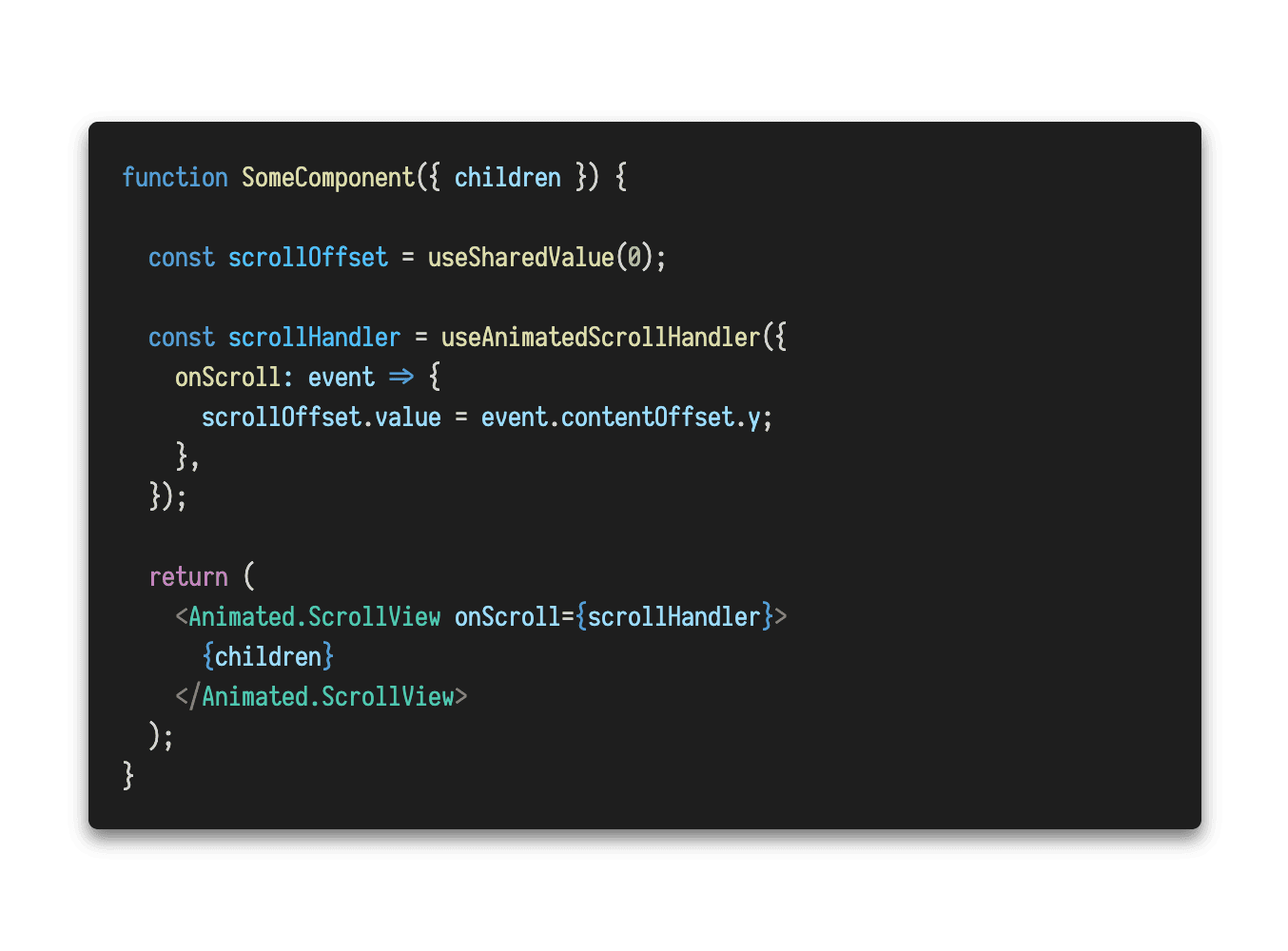
Above, the scroll handler is a worklet and runs the scroll event logic on the UI thread. Updates made in that worklets are synchronous.
Reactiveness with Shared Values
Second most important aspect of Shared Values is that they provide a notion of reactiveness to Reanimated framework. By that, we mean that updates made to Shared Values can trigger corresponding code execution on the UI thread, that can further result in starting animations, view updates, etc.
The reactiveness layer has been designed to be fully transparent from the developer perspective. It is based on the concept of Shared Values being captured by reactive worklets (called internally “mapper worklets”).
Currently, there are two ways how you can create a reactive worklet. This can be done either by using useAnimatedStyle or useDerivedValue hooks. When a Shared Value is captured by a worklet provided to these hooks, the worklet will re-run upon the Shared Value change. Under the hood, Reanimated engine builds a graph of dependencies between Shared Values and reactive worklets that allows us to only execute the code that needs to update and to make sure updates are done in the correct order. For example, when we have a Shared Value x, a derived value y that uses x, and an animated style that uses both x and y, we only re-run the derived value worklet when x updates. In such a case, we will also always run the derived value y updater first prior to running the animated style updater, because the style depends on it.
Let us look now at an example code:
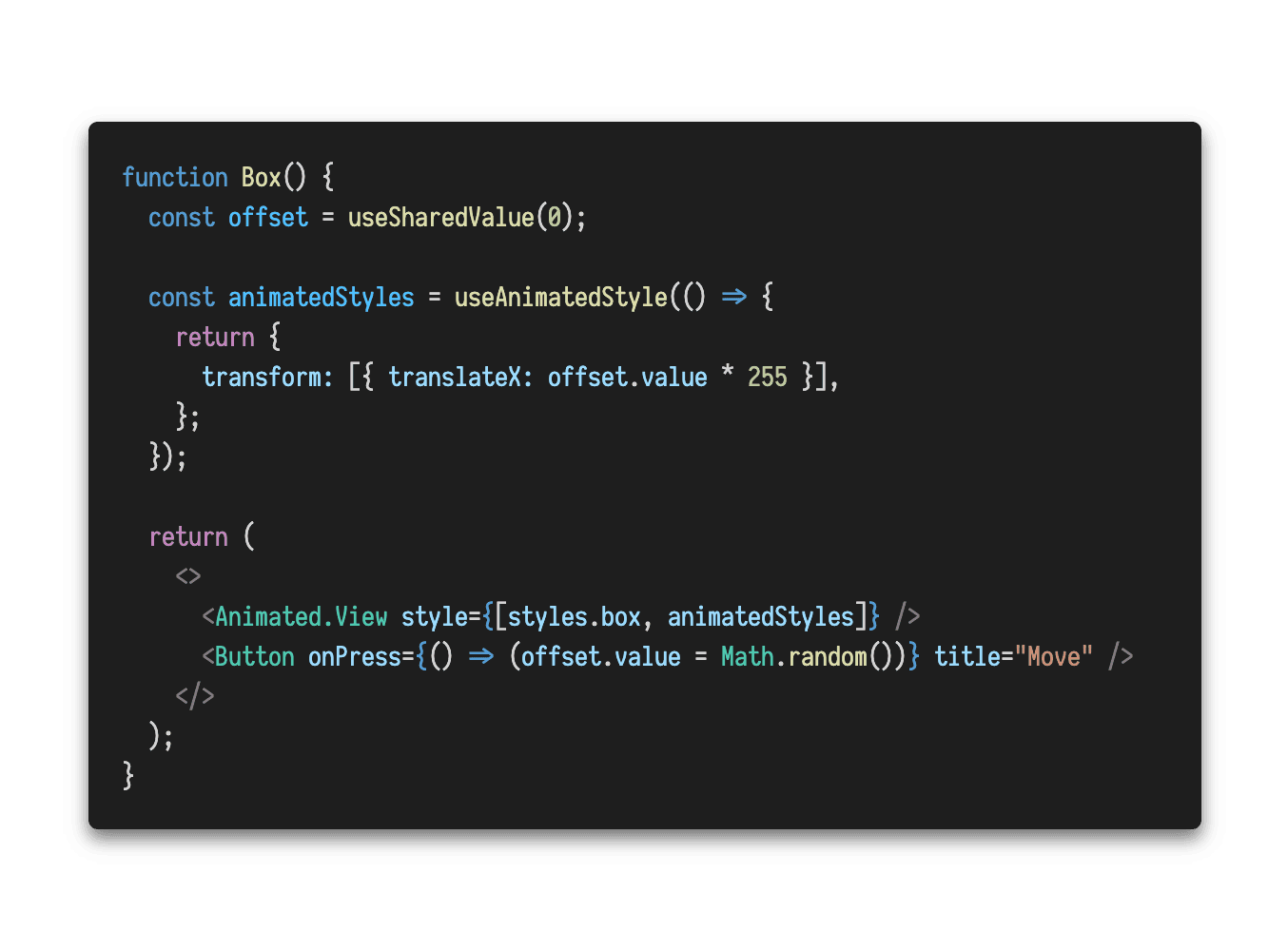
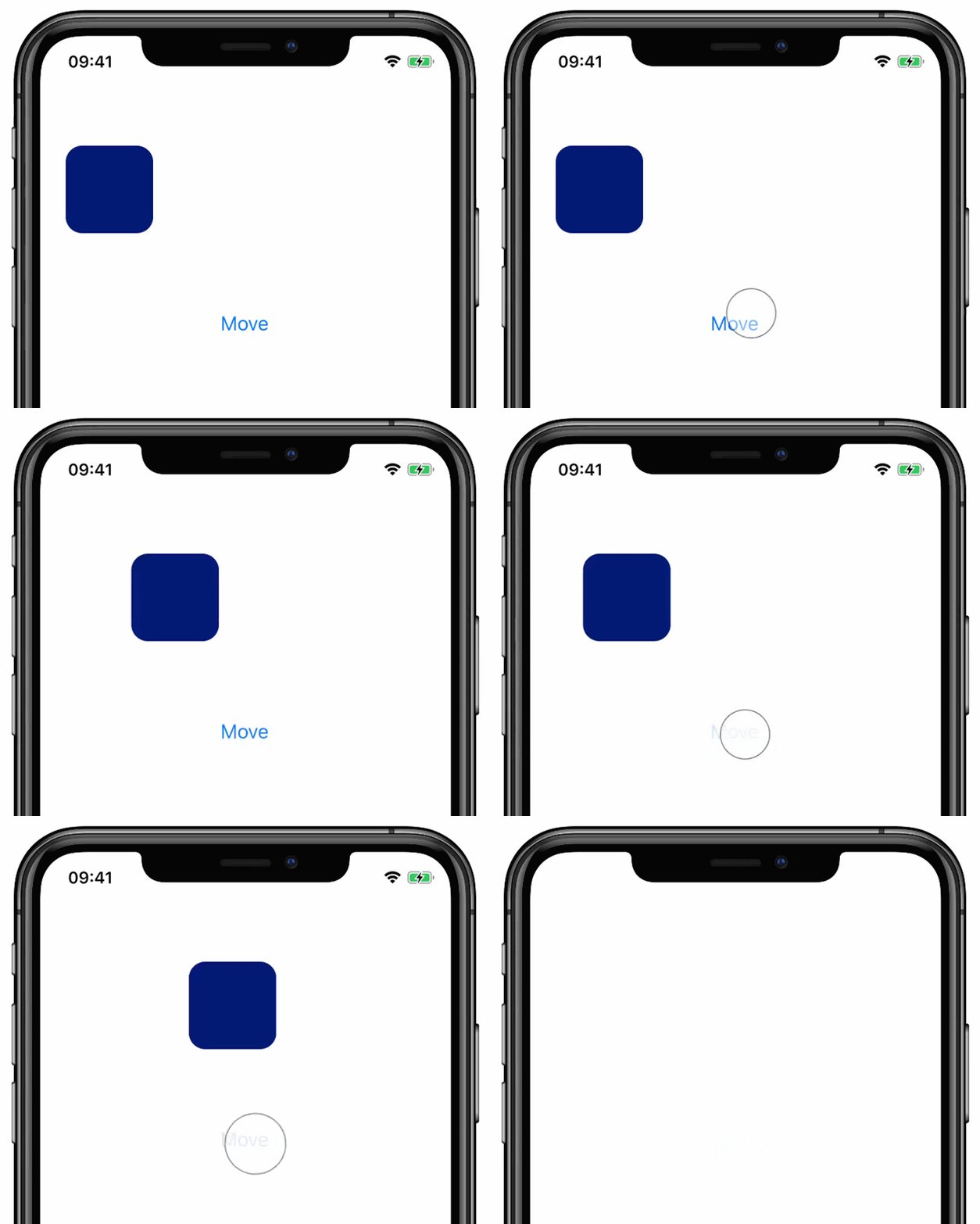
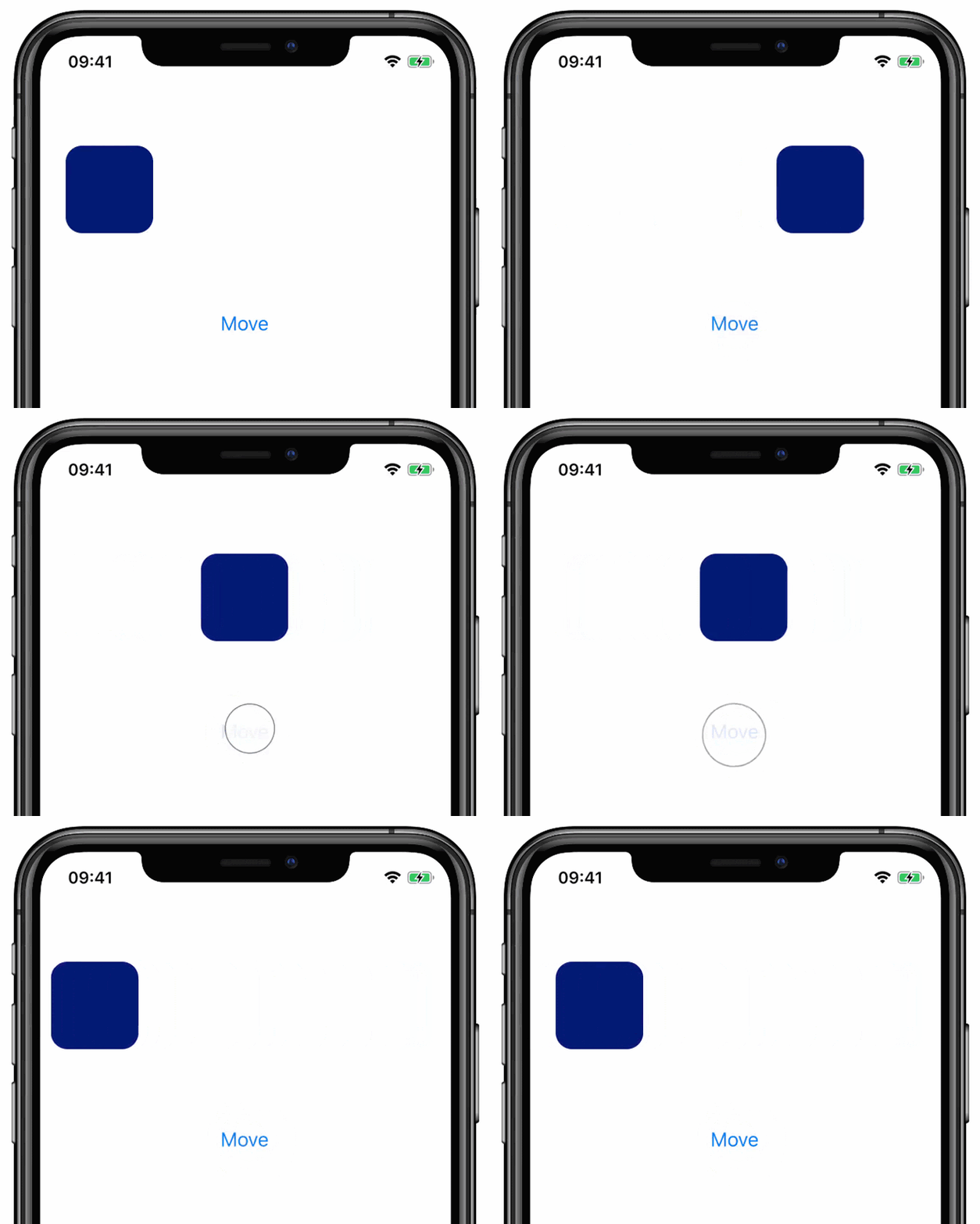
In the above code, we define offset Shared Value which is used inside useAnimatedStyle reactive worklet. The offset Shared Value is set to 0 initially, and we added a button that updates the value using Math.random(). This way each time we press on the button, the offset will update to a random value from 0 to 1. Since animated style worklets are reactive, and in our case they depend on a single offset Shared Variable, the worklet won’t be executed except from the initial run, or unless the value is updated. Upon the button press, and when the value updates, Reanimated core will execute dependent worklets. In our case that’d be our animated style worklet. As a result, the worklet will re-execute causing the style to be updated. Since in useAnimatedStyle we take offset’s value, multiply it by 255 and map that to the x-translation of the view, the view will immediately be shifted to a new location that is from 0 to 255 pixels far from the initial view position. This is what you will observe:
Driving animations
Animations in Reanimated 2 are first-class citizens, and the library comes bundled with a number of utility methods that help you run and customize animations. One of the ways for animation to be launched is by starting an animated transition of a Shared Value. This can be done by wrapping target value with one of the animation utility methods from reanimated library (e.g. withTiming or withSpring):
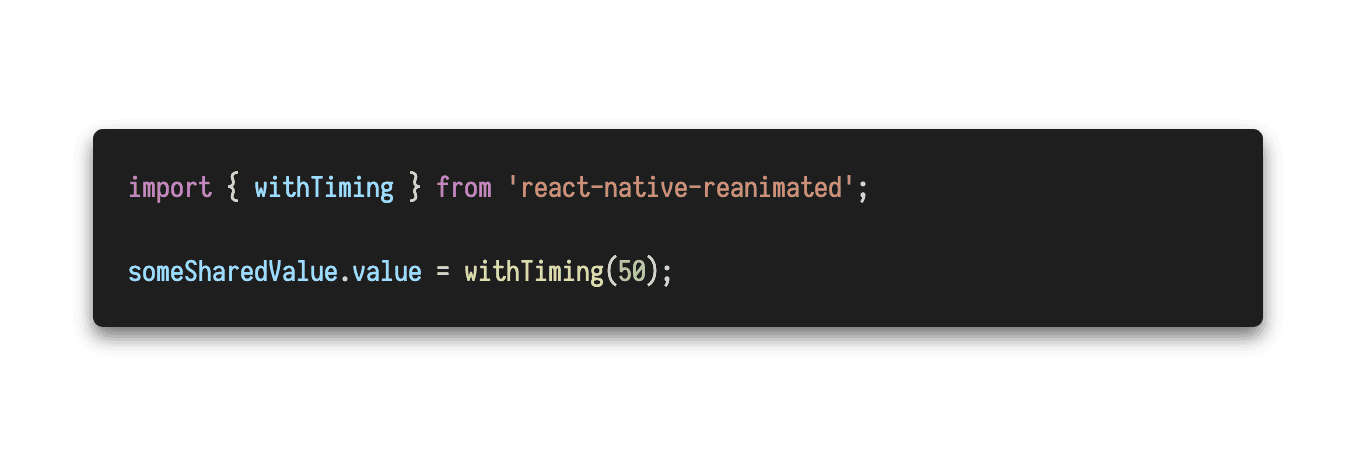
In the above code the offset Shared Value instead of being set to 50 immediately, will transition from the current value to 50 using time-based animation. Of course, launching animation this way can be done both from the UI and from the React-Native JS thread. Below is a complete code example which is the modified version of the example from the previous section. Here, instead of updating offset value immediately, we perform an animated transition with a timing curve.
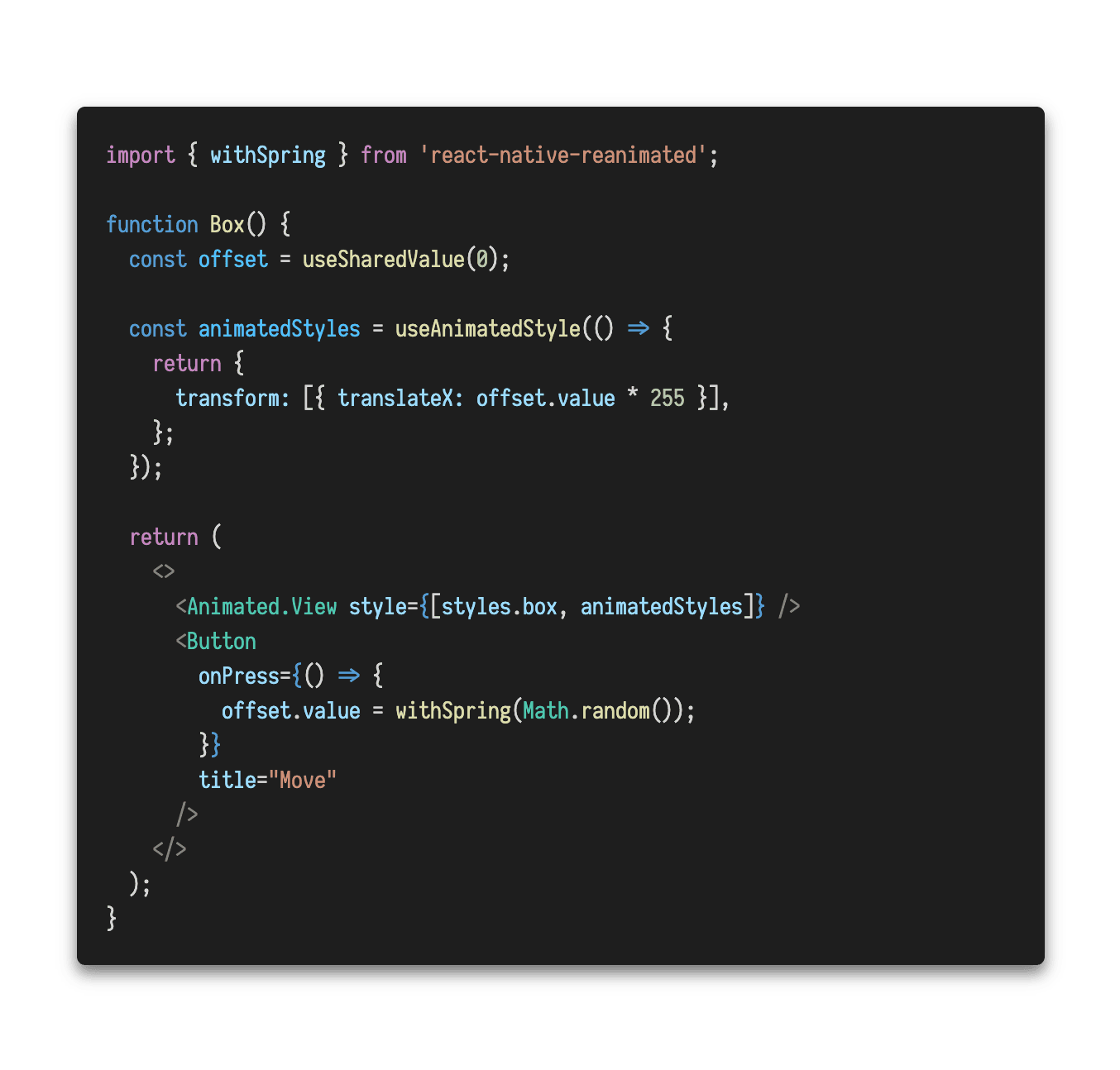
The only change we made in the above code compared to the example from the previous section, is that we wrapped Math.random() call that updates the offset with withSpring call. As a result, the updates to the view’s translation will be smooth:
if you want to learn how to customize animations or get notified when the animation is finished check the API of animation method you want to use, e.g., withTiming or withSpring.
Animation progress
In order to retrieve the current state of the animated transition started on a Shared Value we can access the .value property of the Shared Value. After the Shared Value transition is started, the .value property will be in sync with the animation progress. That is, when the initial value is 0 and we start animated transition using withTiming(50) that will take 300ms, we should expect the reads of .value property to return a number from 0 to 50 that will correspond to the current position of the value as the animation progresses.
Interrupting animations
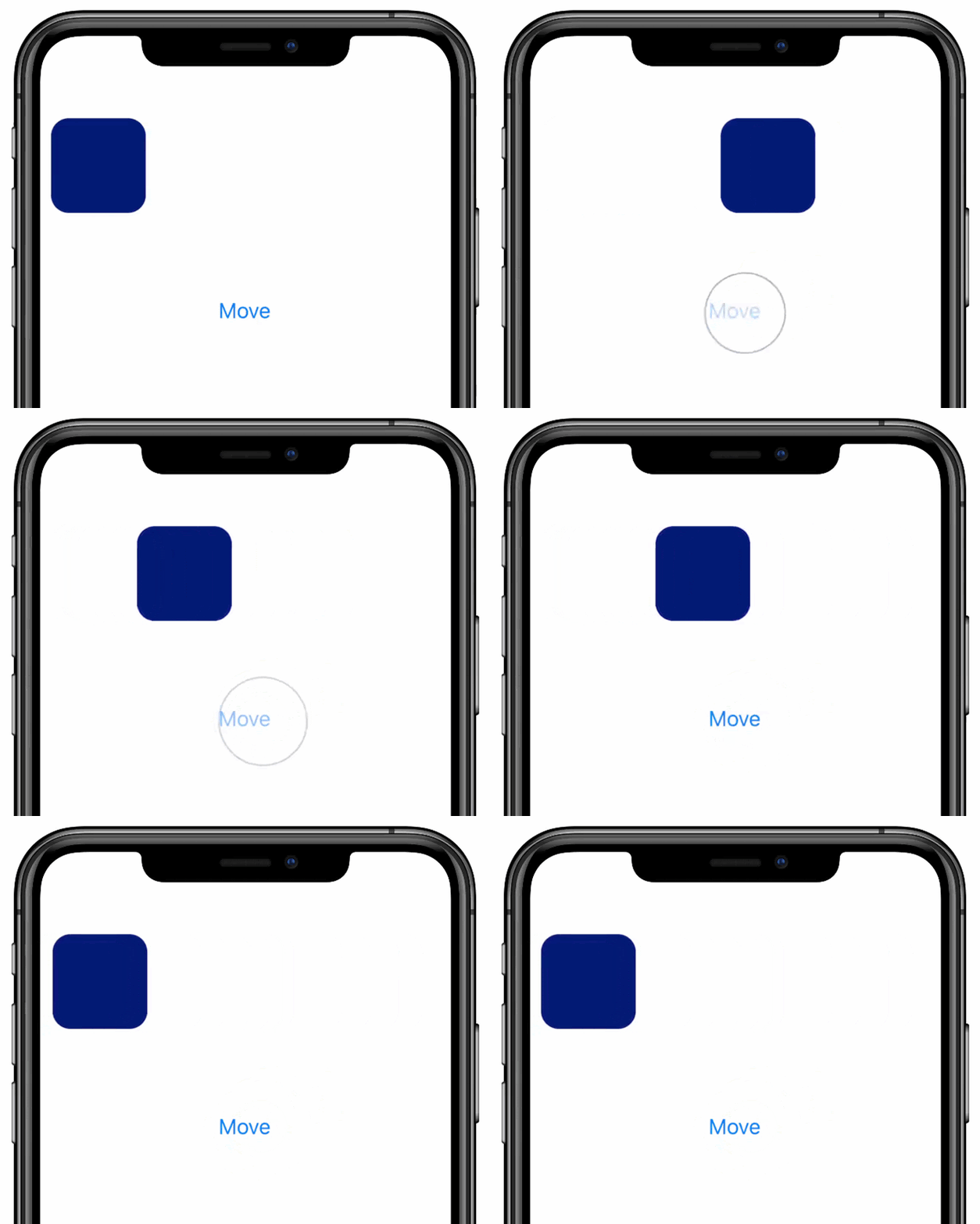
Thanks to the fact that Shared Values keep the state of their animated transition, we can make all animations fully interruptible. This means that you can make updates to the Shared Value even if it is currently running the animation without worrying that this will cause an unexpected and sudden animation glitch. Overwriting the value in such a case will result in the previous animation being interrupted. If the newly assigned value is a number (or anything static), that new value will be immediately assigned to the Shared Value, and the previously running animation will be cancelled. In case the newly assigned value is also an animation, the previously running animation will smoothly transition into a new one. Animation parameters such as velocity will transfer as well, which is particularly important in spring-based animations. This allows to achieve a really smooth transform from one animation into another. This behavior is demonstrated on the clip below where we just do more frequent taps on the button such that the new animation starts while the previous one is still running (there are no code changes compared to the previous example).
Wrap
We hope that this article helped you understand Shared Values and rationale behind some of our design decisions better. As we keep improving Reanimated 2 documentation, expect more articles to be posted about other aspects of the API. If you seek more content about Shared Value, we recommend that you visit our documentation page where we discuss a few more details and also present a cheat-sheet-style comparison between Shared Values and Animated Values from the React Native’s Animated API.
Reanimated 2 is brought to you by Software Mansion and Shopify.